 Macon Calendar Tools
Open app
Save your Outlook calendar as a PDF
A PDF of your calendar is handy for emailing a schedule, attaching it to a timesheet, or printing later. Outlook has no "export calendar to PDF" — but any layout in TriFold becomes a PDF with one click.
Print your calendar now Free to try. No account needed.
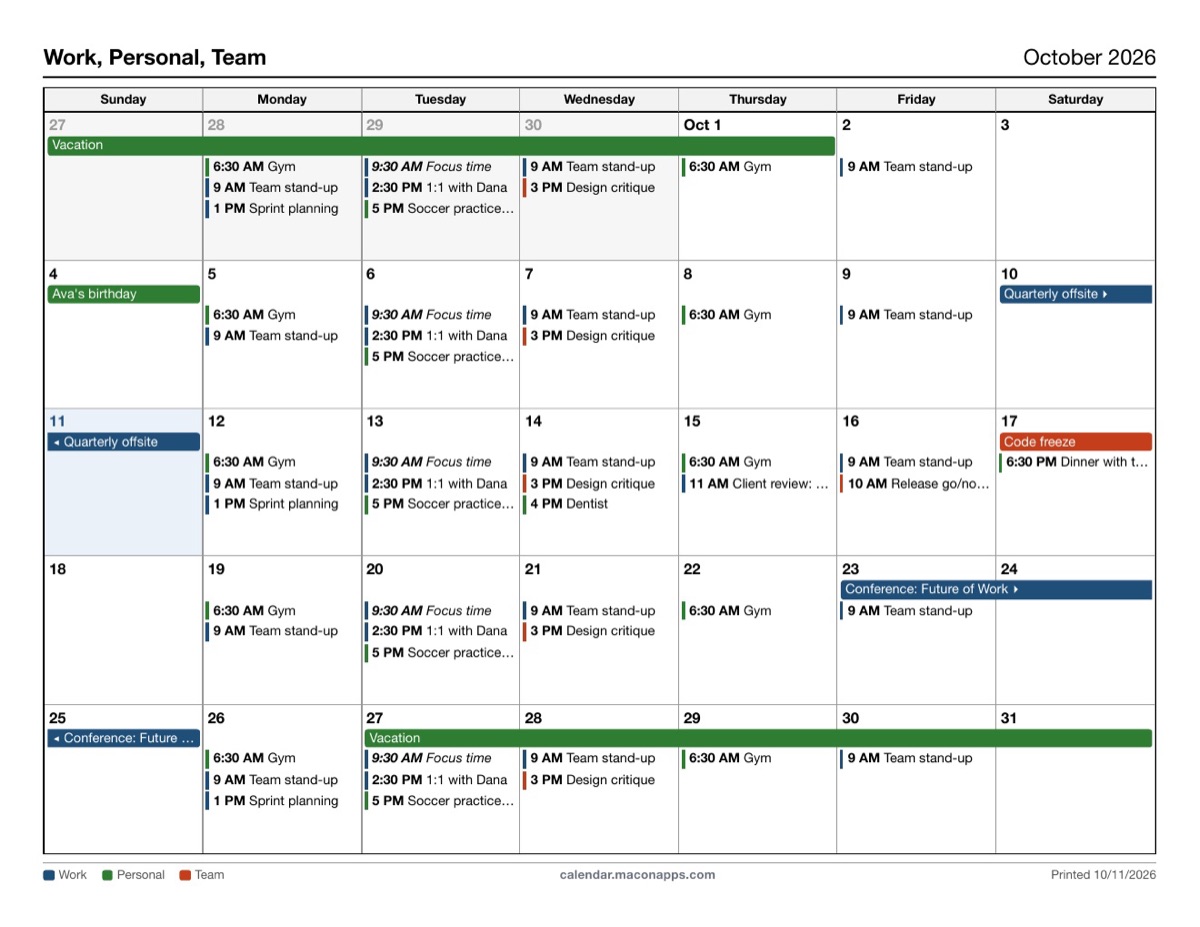
How to save an Outlook calendar as a PDF
- Open the app, sign in with Microsoft (or paste a published calendar link), and tick the calendars to include.
- Choose the layout and date, set paper size and orientation.
- Click Save as PDF. In the dialog that opens, the destination is already a PDF printer ("Save as PDF" in Chrome and Edge, "Microsoft Print to PDF" on Windows). Choose where to save it.
The file name is the page title — for example *October 2026 – Work, Personal* — so a folder of monthly PDFs sorts itself.
Tips for a clean PDF
- Set margins to Default or None in the print dialog; the page already has its own margins.
- Turn on Background graphics so calendar colors are kept.
- Match Page size in the app to the paper the recipient will print on (Letter in the US, A4 almost everywhere else).
- For a multi-page document — say every week of a month — print each week to its own PDF, or use the multi-week layout for one page.
Which layout for which PDF?
- Monthly for a schedule to email or post on a shared drive.
- Weekly with details for a week's meetings with rooms and attendees.
- Agenda for a plain list of everything in a date range — the easiest to read on a phone.
- Yearly for a one-page overview of holidays, deadlines or leave.
Your calendar, mail and contact data are read in your browser straight from Microsoft and are never uploaded to our servers.
Frequently asked questions
Can I make the PDF from Outlook on the web?
Yes. The app reads your calendar through your Microsoft account, so it works whichever Outlook you use; the PDF is made in your browser.
Is the PDF searchable?
Yes. It is printed as text, not an image, so you can search and copy from it.
Can I PDF a shared calendar?
Any calendar you can see in Outlook, including shared and group calendars, can be ticked and included.
Which layouts are free?
Monthly, weekly and daily are free; the rest are Pro.
Is my calendar uploaded?
Your calendar, mail and contact data are read in your browser straight from Microsoft and are never uploaded to our servers.