 Macon Calendar Tools
Open app
Export your Outlook calendar to CSV
The new Outlook has no calendar export, and classic Outlook's CSV wizard produces a wall of legacy columns. This writes a clean CSV of any date range that opens correctly in Excel, Google Sheets and Numbers.
Export your calendar Free to try. No account needed.
Steps
- Open the app and sign in with Microsoft, or paste a published calendar link.
- Pick the date range and tick the calendars to include.
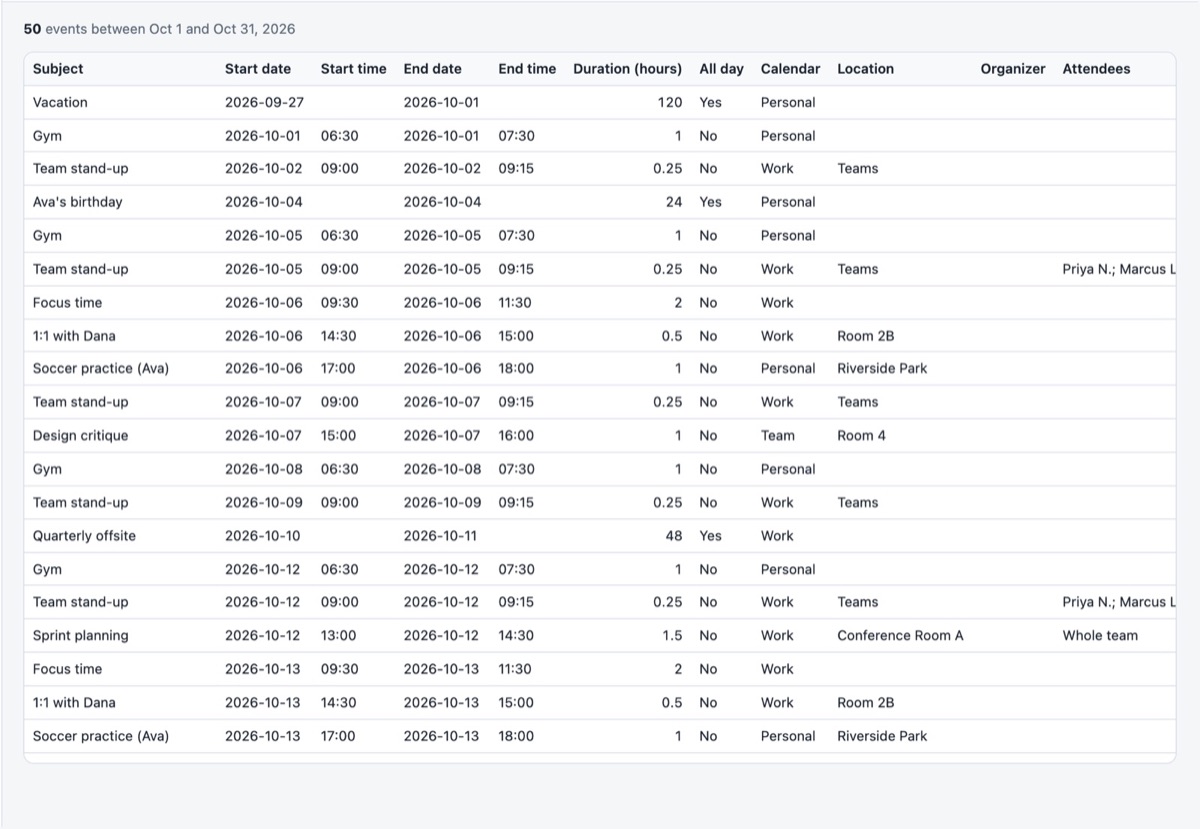
- Click Export .csv. The file is named after the range, e.g. *calendar-2026-10.csv*.
Columns
Subject, Start date, Start time, End date, End time, Duration (hours), All day, Calendar, Category, Location, Organizer, Attendees, Show as, Recurring, Private, Description (first line). Dates are ISO (2026-10-12) so they sort and import without locale surprises; the file carries a UTF-8 BOM so Excel shows accented names correctly.
CSV or Excel?
Choose .xlsx when you want the Pro summary sheets (hours by category, week and calendar) and typed date cells. Choose .csv for imports into other tools, scripts, or a quick open in any spreadsheet. Both come from the same data.
Safe to open
Cells that start with = + - or @ are neutralised, so an event titled with a formula cannot run anything when the file is opened.
Your calendar, mail and contact data are read in your browser straight from Microsoft and are never uploaded to our servers.
Frequently asked questions
Does it work with the new Outlook?
Yes. It reads the calendar through your Microsoft account, so new Outlook, classic Outlook, Outlook on the web and Outlook.com all work.
Can I export a shared calendar?
Any calendar you can see in Outlook can be ticked and exported.
How many rows can I export?
The free plan writes the first 100 events of a sheet; Pro has no cap.
Is my calendar uploaded?
Your calendar, mail and contact data are read in your browser straight from Microsoft and are never uploaded to our servers.